How to Import Data from Azure Blob to Azure Data Warehouse and Reference it from Azure Data Lake
In this post, I will show how to upload data from a file that is stored in Azure Blob to Azure Data Warehouse, and how to access this data from Azure Data Lake.
In my example, I will import IP-Location reference csv file that I used in my other post – see:
http://remekh.blogspot.com/2016/08/azure-data-lake-analytics-process-web.html
Before we import our csv file, we have to upload it to azure storage.
If you don’t have any Azure Blob storage yet, please create new one e.g. refdata
Create new blob e.g. ipdata and upload dbip-city.csv file.
Import Data to Azure Warehouse using PolyBase
To import data from Azure Blob to Azure Data Warehouse using PolyBase, follow these steps: Using SQL Server Management Studio, connect to Azure Data Warehouse.
Run the following queries:
First, let’s create a new encryption key.
CREATE MASTER KEY ENCRYPTION BY PASSWORD = '<some password>';
Next, we have to specify credentials to access our Azure storage. The Identity (user) can be any string.
The secret key can be taken from Azure portal.
CREATE DATABASE SCOPED CREDENTIAL AzureStorageCredential
WITH IDENTITY = '<user - (can be any string)>', Secret = '<Your Azure Storage Account Key>';
Create connection to external data source (Azure Blob). In our example, the location string would look like this:
'wasbs://ipdata@refdata.blob.core.windows.net'
CREATE EXTERNAL DATA SOURCE AzureStorage
WITH (
   TYPE = HADOOP,
   LOCATION ='wasbs://<blob_container_name>@<azure_storage_account_name>.blob.core.windows.net',
   CREDENTIAL = AzureStorageCredential
);
In this step, we have to specify the format of the file we want to import.
CREATE EXTERNAL FILE FORMAT IPCSVFormat WITH (
       FORMAT_TYPE = DELIMITEDTEXT,
       FORMAT_OPTIONS (FIELD_TERMINATOR =',',
       STRING_DELIMITER = '"',
       USE_TYPE_DEFAULT = TRUE));
Next, we have to create external table. Later through this table, we can access data from our csv file.
The type of the column has to match the data type in our csv file.
Location – it's the location of the file. For instance, if you multiply files, the location would be ‘.’
CREATE EXTERNAL TABLE dbo.IPDateSrc (
   StartIP varchar(50) NULL,
   EndIP  varchar(50) NULL,
   Country varchar(100) NULL,
   State varchar(150) NULL,
   City varchar(200) NULL
)
WITH (
   LOCATION='dbip-city.csv',
   DATA_SOURCE=AzureStorage,
   FILE_FORMAT=IPCSVFormat
);
Next, we have to create table where we are going to import data from our csv file(s).
CREATE TABLE [dbo].[IPData]
(
   [PartitionID] [int] NOT NULL,
   [StartIPInt] [bigint] NOT NULL,
   [StartIP] [varchar](50) NOT NULL,
   [EndIPInt] [bigint] NOT NULL,
   [EndIp] [varchar](50) NOT NULL,
   [Country] [varchar](100) NULL,
   [State] [varchar](150) NULL,
   [City] [varchar](200) NULL,
   [Location] varchar(500) NULL
)
WITH
(
   DISTRIBUTION = HASH ( [PartitionID] ),
   CLUSTERED COLUMNSTORE INDEX,
   PARTITION
   (
     [PartitionID] RANGE RIGHT FOR VALUES (
       0,1,2,3,4,5,6,7,8,9,10,11,12,13,14,15,16,17,18,19,20,21,22,23,24,25,26,27,
     28,29,30,31,32,33,34,35,36,37,38,39,40,41,42,43,44,45,46,47,48,49,50,51,52,53,54,
   55,56,57,58,59,60,61,62,63,64,65,66,67,68,69,70,71,72,73,74,75,76,77,78,79,80,81,
82,83,84,85,86,87,88,89,90,91,92,93,94,95,96,97,98,99,100,101,102,103,104,105,106,
107,108,109,110,111,112,113,114,115,116,117,118,119,120,121,122,123,124,125,126,127,
128,129,130,131,132,133,134,135,136,137,138,139,140,141,142,143,144,145,146,147,148,
149,150,151,152,153,154,155,156,157,158,159,160,161,162,163,164,165,166,167,168,169,
170,171,172,173,174,175,176,177,178,179,180,181,182,183,184,185,186,187,188,189,190,
191,192,193,194,195,196,197,198,199,200,201,202,203,204,205,206,207,208,209,210,211,
212,213,214,215,216,217,218,219,220,221,222,223,224,225,226,227,228,229,230,231,232,
233,234,235,236,237,238,239,240,241,242,243,244,245,246,247,248,249,250,251,252,253,
254,255
)
)
);
Lastly, let’s import our IP Reference data to the table.
INSERT INTO [dbo].[IPData]
          ([PartitionID]
          ,[StartIPInt]
          ,[StartIP]
          ,[EndIPInt]
          ,[EndIp]
          ,[Country]
          ,[State]
          ,[City]
          ,[Location])
SELECT
  CAST(PARSENAME(StartIP, 4) as int) AS PartitionID,
  CAST(PARSENAME(StartIP, 4)+'000000000' as bigint)+
       CAST(PARSENAME(StartIP, 3)+'000000' as bigint) +
       CAST(PARSENAME(StartIP, 2)+'000' as bigint) +
       CAST(PARSENAME(StartIP, 1) as bigint) as StartIPInt ,
  StartIP,
  CAST(PARSENAME(EndIP, 4)+'000000000' as bigint)+
       CAST(PARSENAME(EndIP, 3)+'000000' as bigint) +
       CAST(PARSENAME(EndIP, 2)+'000' as bigint) +
       CAST(PARSENAME(EndIP, 1) as bigint) as EndIPInt ,
  EndIP,
  Country,
  State,
  City,
  CASE WHEN ISNULL(State,'') <> '' THEN City+', '+State+', '+Country ELSE City +', '+Country END AS Location
FROM dbo.IPDateSrc
WHERE StartIP NOT LIKE '%:%';
“Where” clause will eliminate IPv6 from importConfigure Azure Data Lake to reference Data Warehouse table.
To reference Data Warehouse table from Azure Data Lake, follow these steps:
First, we have to federate credentials between Azure Data Lake and Azure SQL Server.
To do this, open PowerShell and execute following commands:
If you didn’t install Azure PowerShell you can download it from here:
https://www.microsoft.com/web/handlers/webpi.ashx/getinstaller/WindowsAzurePowershellGet.3f.3f.3fnew.appids
Login-AzureRmAccount
Get-AzureRmSubscription
You should see the list of your subscription. Copy your subscription id.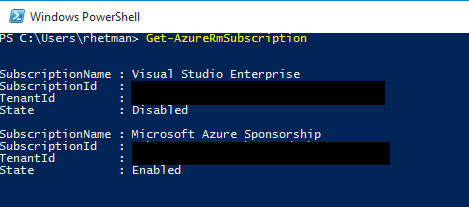
Set-AzureRmContext -SubscriptionId <your subscription id>
$passwd = ConvertTo-SecureString "<enter your Azure SQL Server password>" -AsPlainText -Force
$mysecret =New-Object System.Management.Automation.PSCredential("<Some password Identification e.g. MyPass",$passwd)
New-AzureRmDataLakeAnalyticsCatalogSecret -Account "< Data Lake account name>" -DatabaseName "<Data Lake DB Name>" -Secret $mysecret-Host "<your Azure SQL Server address" -Port 1433
When all executed successfully, open Visual Studio and create new Data Lake project.
Add the following code to usql script: Note: Make sure your script points to the correct Data Lake account and database.
CREATE CREDENTIAL IF NOT EXISTS AzureDWLogin WITHUSER_NAME = "<type your Azure SQL Server user", IDENTITY = "<type your password Identification you used in PS script e.g. MyPass";

CREATE DATA SOURCE IF NOT EXISTS AzureDW
FROM AZURESQLDW
WITH (
PROVIDER_STRING = "Initial Catalog=<enter you DW database name>;",
CREDENTIAL=AzureDWLogin,
REMOTABLE_TYPES = (bool, byte, sbyte, short, ushort, int, uint, long, ulong, decimal, float, double, string, DateTime)
);
Build and execute script
Add new script to project CreateExternalTable.usql
Add the following code:
CREATE EXTERNAL TABLE DW_IPData (
   PartitionId int,
   StartIPInt long,
   StartIP string,
   EndIPInt long,
   EndIp string,
   Country string,
   State string,
   City string,
   Location string
) FROM AzureDW LOCATION "dbo.IPData";
Build and Submit script.
When done, you should see the external table available under Tables.
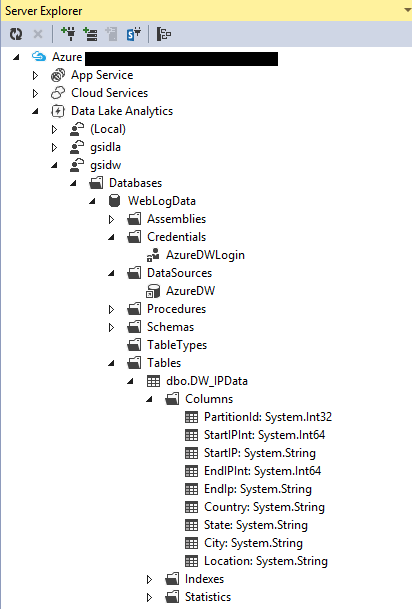
Now your table is ready to be used in U-SQL query. You can reference external tables same as local tables.
For example:
INSERT INTO WebLogData.dbo.LastMonthDataSQL
SELECT V.Year, V.Month, V.Day,
       I.Location,
       V.TotalVisits
FROM WebLogData.dbo.LastMonthVisist AS V
       LEFT JOIN WebLogData.dbo.DW_IPData AS I
       ON V.IPPartition == I.PartitionId
WHERE V.IPInt > 0 AND V.IPInt >= I.StartIPInt AND V.IPInt <= I.EndIPInt;

It is amazing and wonderful to visit your site.Thanks for sharing this information,this is useful to me... azure Online course India
ReplyDeleteSnowflake data warehouse stores data in a multi-tenant cloud environment, which means there is no need to manage hardware or software. Data is stored in the cloud or on-premises by the customer or business partner. Snowflake has an administration panel that is used to control the service. The Snowflake service is used for data loading, data storage
ReplyDelete