Friday, August 19, 2016

Azure Stream Analytics - Process Website Visits

Stream Website Visits to Power BI using Azure Stream Analytics
In this post, I will show how to setup Azure Stream Analytics to process visits from web site in real time and show results in Power BI.

Setup Azure Stream Analytics


First, we are going to setup Azure Stream Analytics

Login to https://manage.windowsazure.com
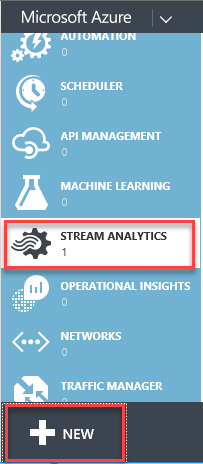
Select Stream Analytics -> NEW -> Quick Create


Enter Job Name, Region and Storage Account.
Click Create Stream Analytics Job.


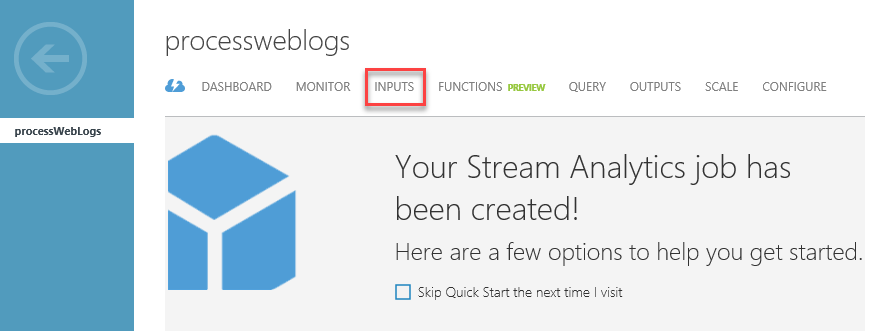
When deployment is finished, click on the job name.


Go to INPUTS


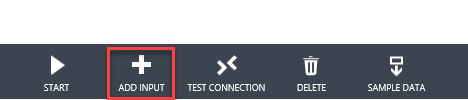
Click ADD INPUT


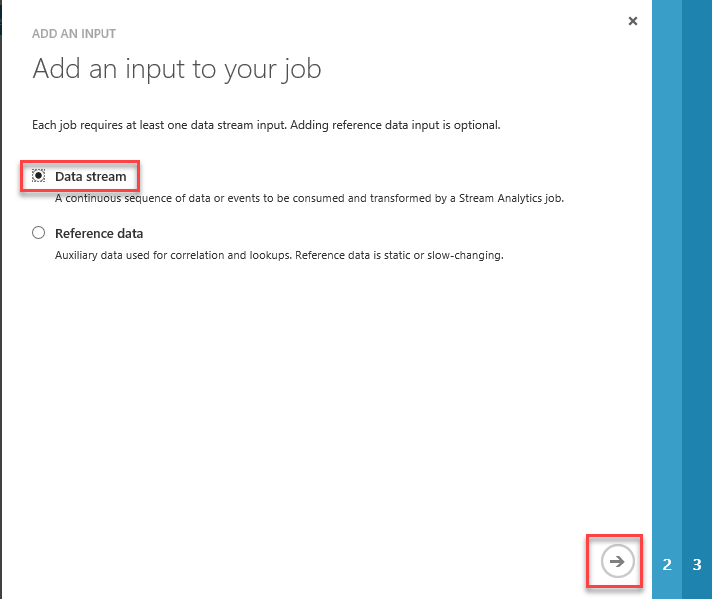
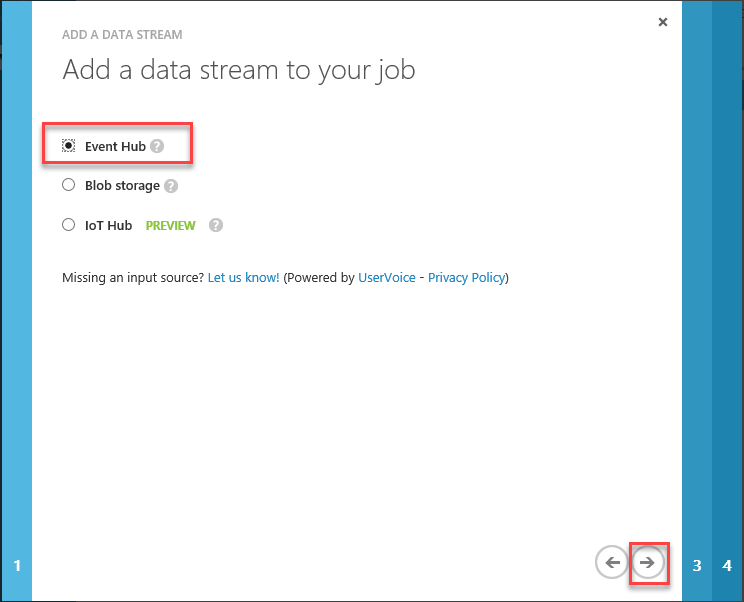
Select Data stream


Event Hub


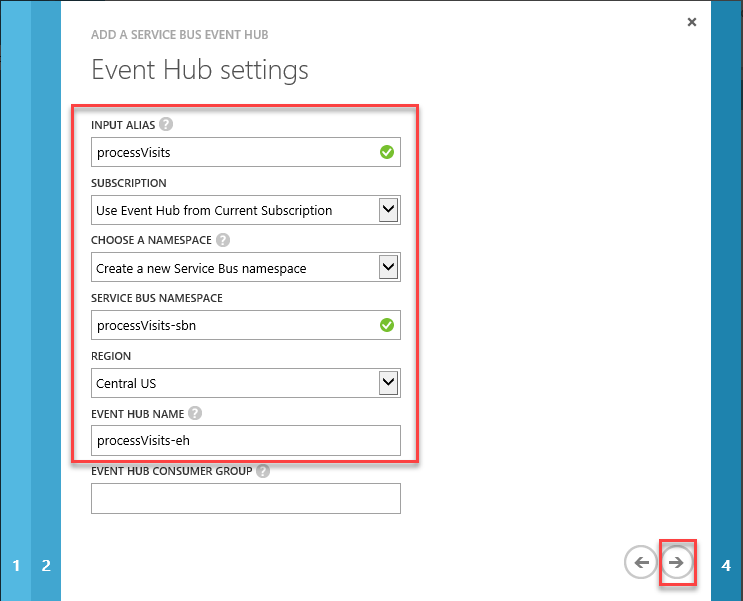
Enter Input Alias, Service Bus Namespace
Select Region and enter Event Hub Name


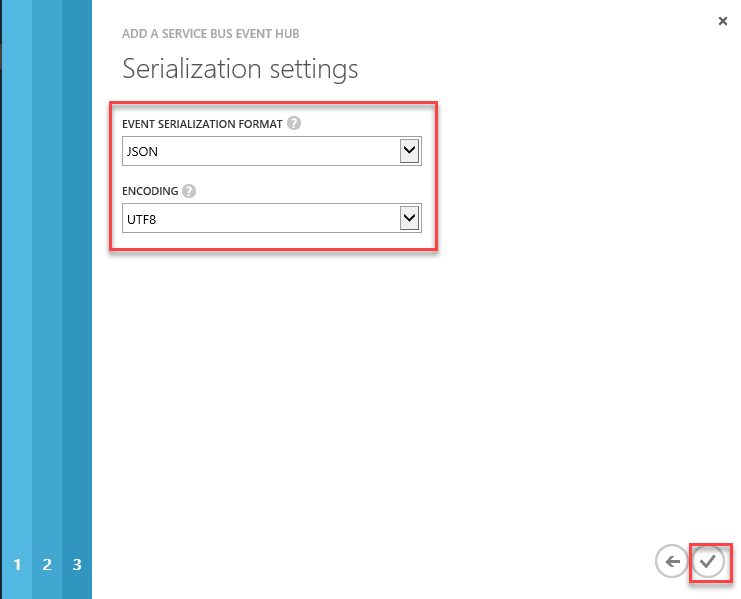
Select JSON as Event Serialization Format and UTF8 as Encoding
Confirm


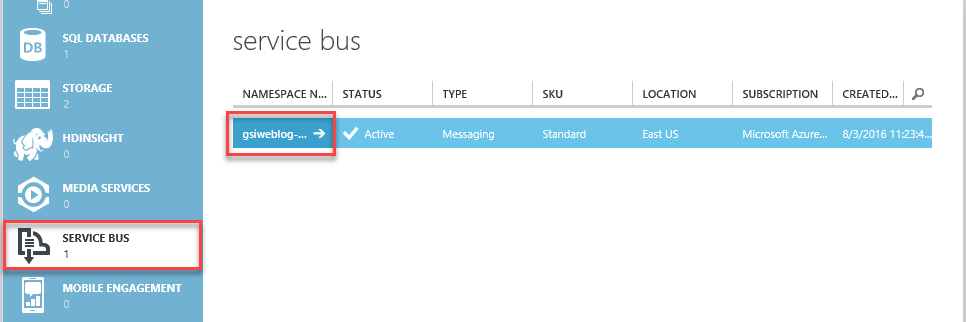
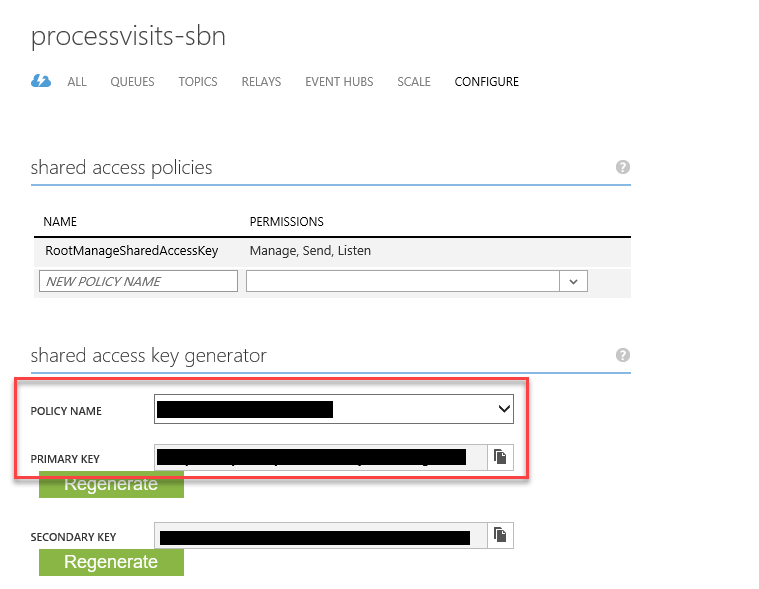
When deployed, go to Service Bus. (Note the namespace – we are going to need this later). Click on the namespace.


Click CONFIGURE – note policy name and primary key – we are going to need this later).


Send Visits to Event Hub


Next, we have to add a code to our web site that will send information about visits to event hub.
You can choose from few SDKs supporting Service Bus, such as: .NET, Java, Node.js, etc.
For more information, visit:
https://azure.microsoft.com/en-us/documentation/articles/service-bus-dotnet-get-started-with-queues/

For simplicity, in our example I used JavaScript. (Since we have to enter all information regarding connection to our Event Hub to the JavaScript, I don’t recommend to use this method for public websites).
Here is the link to JS SDK:
https://github.com/ddobric/ServiceBusJavaScriptSdk/wiki/Welcome-to-Azure-Service-Bus-JavaScript-SDK-1.2

Here is the example of simple html file that will send all information about a visit every time someone opens the web site. (as the base, I used the ServiceBusSample app that comes with JS SDK).

<!DOCTYPE HTML PUBLIC "-//W3C//DTD HTML 4.01 Transitional//EN" "http://www.w3.org/TR/html4/loose.dtd">
<html>
<head>
   <title>Welcome Test Page</title>
   <link rel="stylesheet" href="css/qunit-git.css" type="text/css" />
   <link rel="stylesheet" href="css/main.css" type="text/css" />
   <script type="text/javascript" src="http://code.jquery.com/jquery-latest.js"> </script>
   <script src="Scripts/servicebusjssdk-1.2.min.js"></script>
   <link rel="stylesheet" href="css/shCore.css" type="text/css" />
   <link rel="stylesheet" href="css/shThemeEclipse.css" type="text/css" />
   <script src="Scripts/shCore.js"></script>
   <script type="text/javascript" src="Scripts/shBrushJScript.js"></script>
   <script type="text/javascript">
       $(document).ready(function () {
           var queuePath = "<enter event hub name>";
           var ehClient = new EventHubClient(
           {
               'name': queuePath,
               'devicename': 'jsweblog',
               'namespace': "<enter you Event Hub namespace",
               'sasKey': "<enter primary key",
               'sasKeyName': "<enter policy name",
               'timeOut': 10,
           });
           $.get("http://ipinfo.io", function (response) {
               var d = (new Date).toISOString().replace(/z|t/gi, ' ').trim();
               var location = ""
               if (response.region == "") {
                   location = response.city + ", " + response.country;
               } else {
                   location = response.city + ", " + response.region + ", " + response.country;
               }
               var eventBody = { "logdate": d, "ip": response.ip, "country": response.country, "city": response.city, "region": response.region, "location": location };
               var msg = new EventData(eventBody);
             ehClient.sendMessage(msg, function (messagingResult) {
                   $("#result").html(messagingResult.result);
                   $("#eventData").html(JSON.stringify(eventBody));
               });
           }, "jsonp");
       });
   </script>
</head>
<body>
   <section class="container ">
       <h1 id="qunit-header" class="sample-page-title">Welcome !!</h1>
       <h2 id="qunit-banner" />
       <div class="inner-wrapper">
           <div class="message-wrapper">
               <p>Event Data:</p>
               <div id="eventData">
               </div><br />
               <p>Message Body:</p>
               <div id="result">
               </div><br />
           </div>
       </div>
   </section>
</body>
</html>

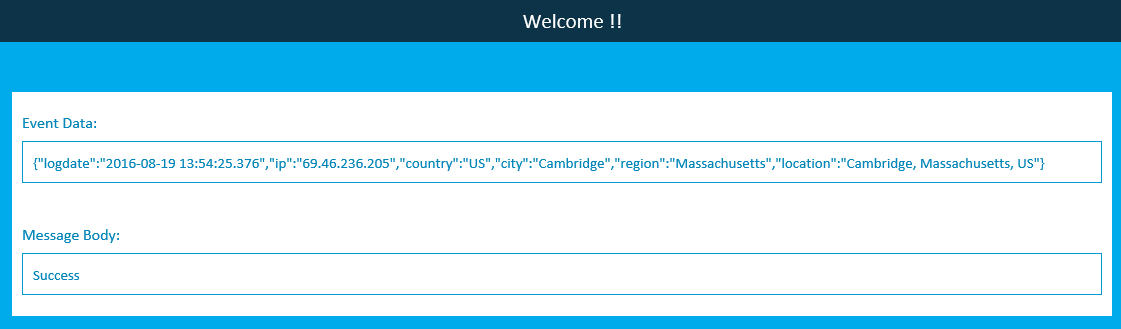
When you open this page, you will see something like that:


Event Data is the string in JSON format that was sent to Event Hub
Message Body: It is the status return from Event Hub.

Configure Azure Stream Analytics


In this step, we are going to write query to process JSON sent from our web site and output it to Power BI table.
Outputs

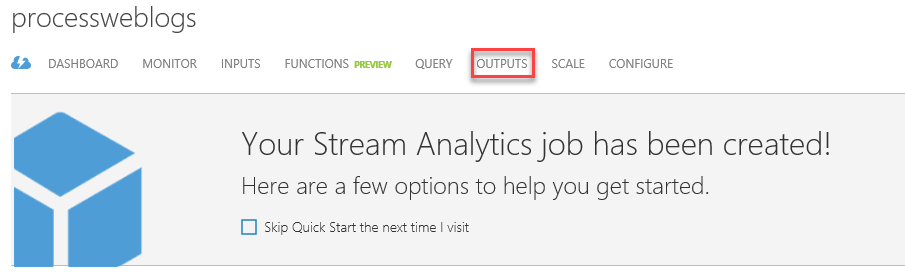
Go back to Stream Analytics and click OUTPUTS


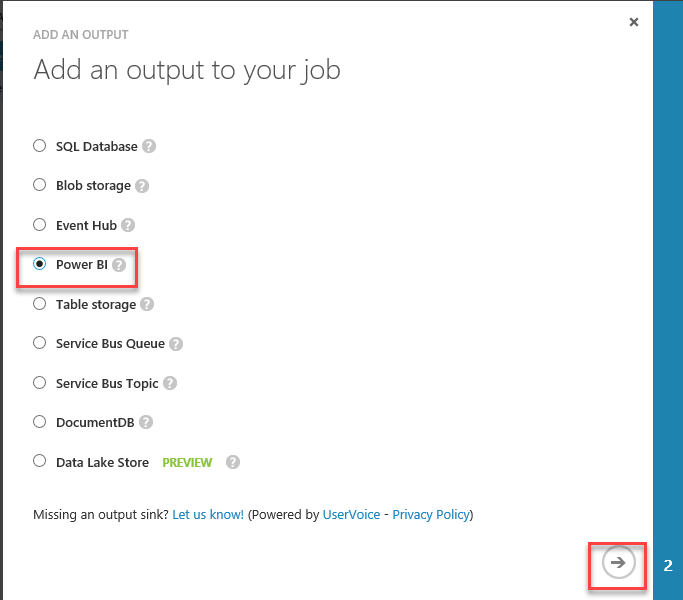
Click ADD OUTPUT


Select Power BI

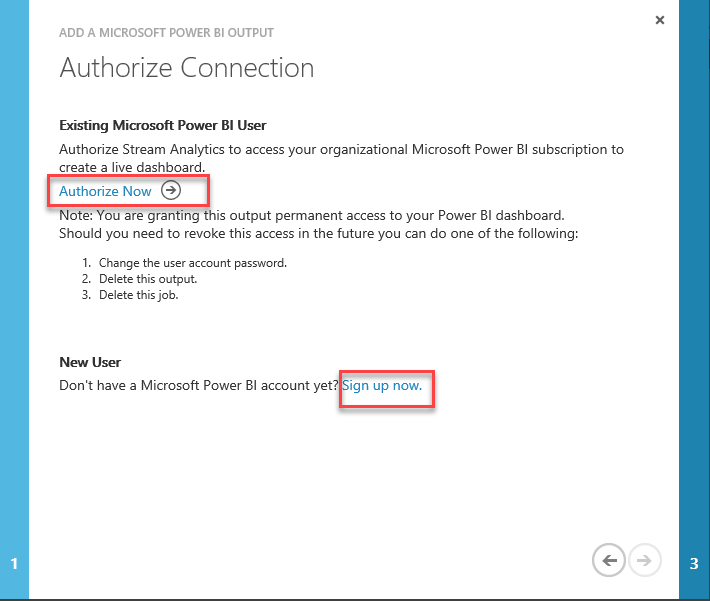
Click “Authorize Now” or “Sign up now” to create new Power BI account.

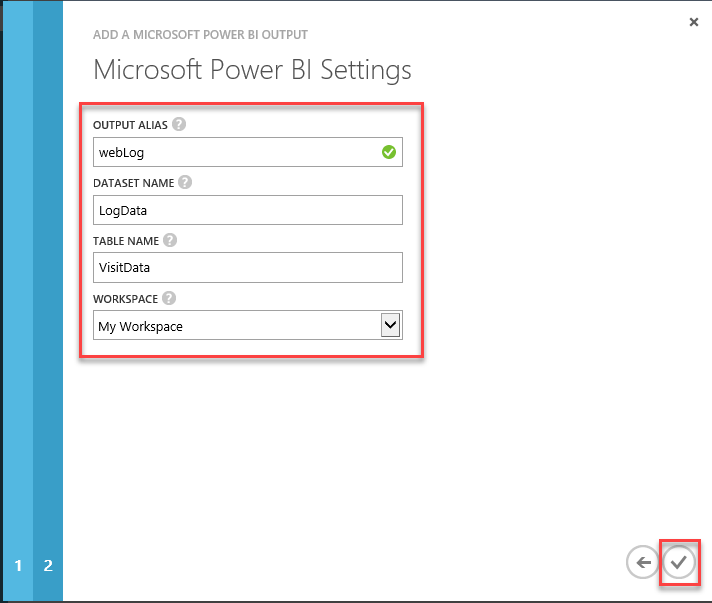
Fill out all information and confirm


Query

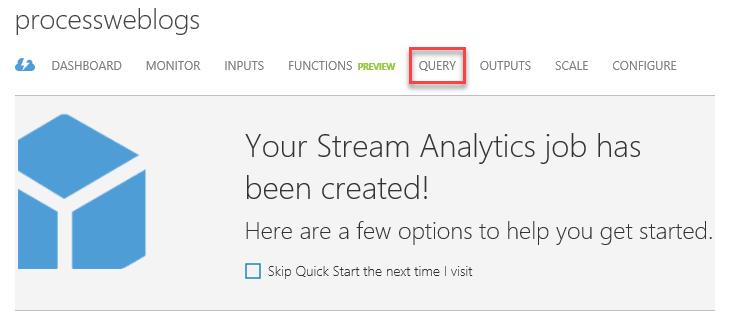
Click QUERY


Stream Analytics is using subset of T-SQL language to query data.
For more information, visit: https://manage.windowsazure.com
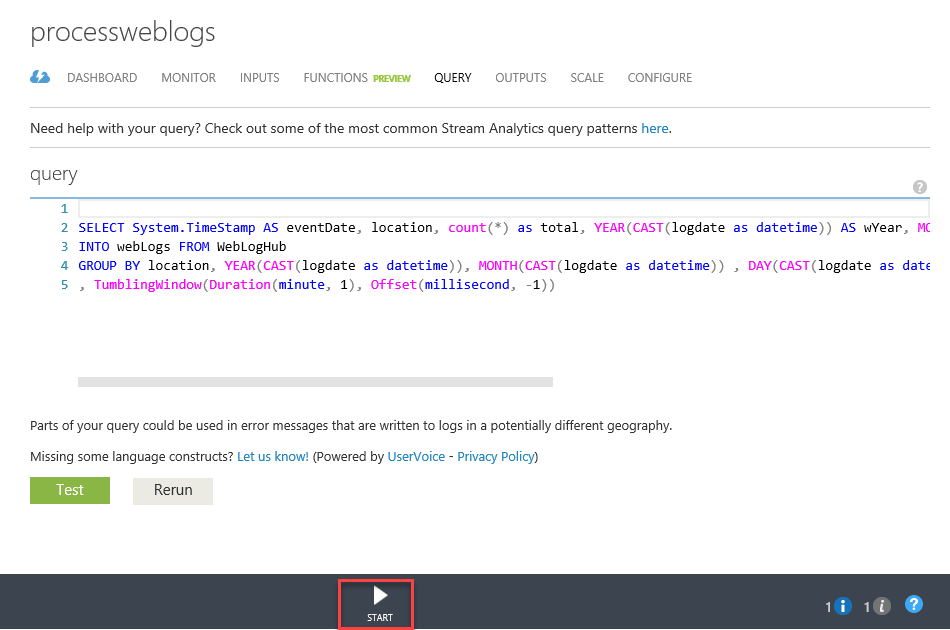
Here is the query I used in our example:
SELECT System.TimeStamp AS eventDate, location, count(*) as total, YEAR(CAST(logdate as datetime)) AS wYear, MONTH(CAST(logdate as datetime)) AS wMonth, DAY(CAST(logdate as datetime)) AS wDay
INTO webLog FROM WebLogHub
GROUP BY location, YEAR(CAST(logdate as datetime)), MONTH(CAST(logdate as datetime)) , DAY(CAST(logdate as datetime))
, TumblingWindow(Duration(minute, 1), Offset(millisecond, -1))
FROM – the name of our input
INTO – the name of our output. This can be skipped if you have only one output.
Click Start


Power BI

In the last step, we are going to present visits data on the map in Power BI.
Login to https://app.powerbi.com
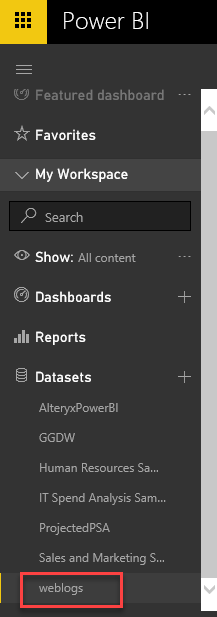
You should see your new data set. Click on it.


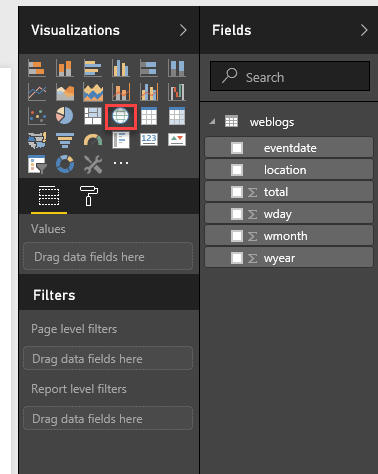
From the Visualizations, click on Map


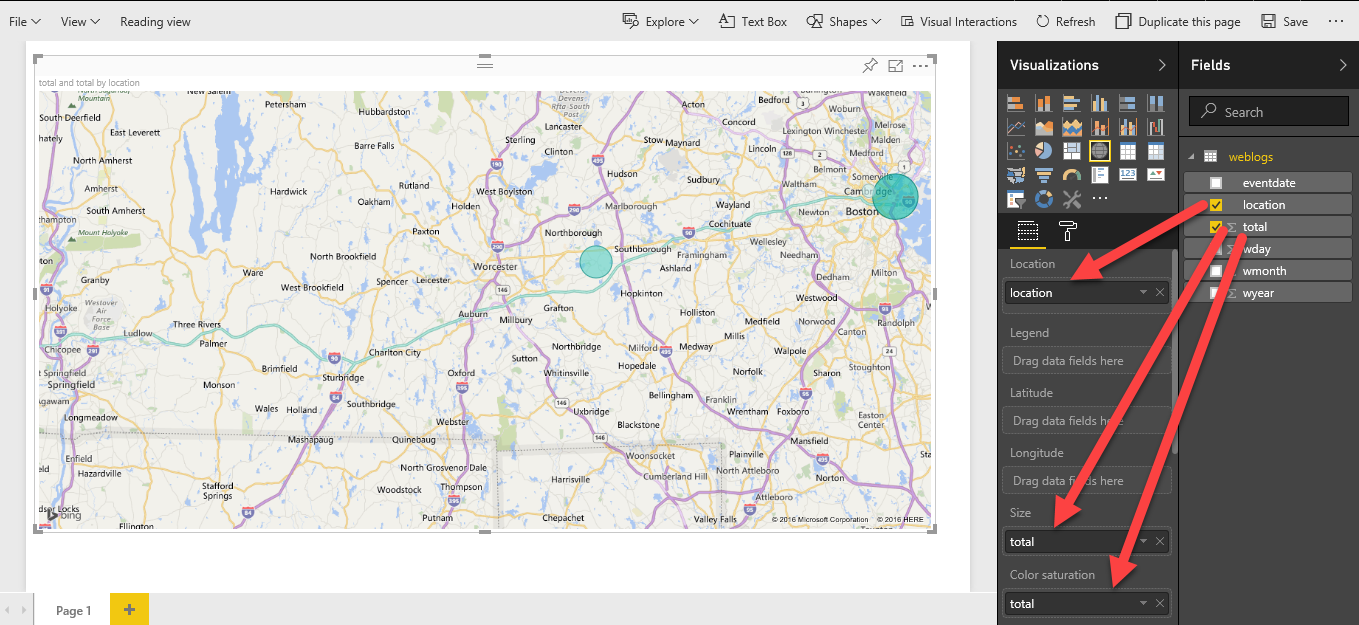
Drag location and drop to Location, and total to Size and Color Saturation.


Save as new report.
Done.

Friday, August 12, 2016

Reference Azure Data Warehouse Table from Azure Data Lake

How to Import Data from Azure Blob to Azure Data Warehouse and Reference it from Azure Data Lake


In this post, I will show how to upload data from a file that is stored in Azure Blob to Azure Data Warehouse, and how to access this data from Azure Data Lake.
In my example, I will import IP-Location reference csv file that I used in my other post – see:
http://remekh.blogspot.com/2016/08/azure-data-lake-analytics-process-web.html

Before we import our csv file, we have to upload it to azure storage.
If you don’t have any Azure Blob storage yet, please create new one e.g. refdata
Create new blob e.g. ipdata and upload dbip-city.csv file.

Import Data to Azure Warehouse using PolyBase


To import data from Azure Blob to Azure Data Warehouse using PolyBase, follow these steps: Using SQL Server Management Studio, connect to Azure Data Warehouse.
Run the following queries:
First, let’s create a new encryption key.

CREATE MASTER KEY ENCRYPTION BY PASSWORD = '<some password>';

Next, we have to specify credentials to access our Azure storage. The Identity (user) can be any string.
The secret key can be taken from Azure portal.

CREATE DATABASE SCOPED CREDENTIAL AzureStorageCredential
WITH IDENTITY = '<user - (can be any string)>', Secret = '<Your Azure Storage Account Key>';

Create connection to external data source (Azure Blob). In our example, the location string would look like this:
'wasbs://ipdata@refdata.blob.core.windows.net'

CREATE EXTERNAL DATA SOURCE AzureStorage
WITH (
   TYPE = HADOOP,
   LOCATION ='wasbs://<blob_container_name>@<azure_storage_account_name>.blob.core.windows.net',
   CREDENTIAL = AzureStorageCredential
);

In this step, we have to specify the format of the file we want to import.

CREATE EXTERNAL FILE FORMAT IPCSVFormat WITH (
       FORMAT_TYPE = DELIMITEDTEXT,
       FORMAT_OPTIONS (FIELD_TERMINATOR =',',
STRING_DELIMITER = '"',
       USE_TYPE_DEFAULT = TRUE));

Next, we have to create external table. Later through this table, we can access data from our csv file.
The type of the column has to match the data type in our csv file.
Location –  it's the location of the file. For instance, if you multiply files, the location would be ‘.’

CREATE EXTERNAL TABLE dbo.IPDateSrc (
   StartIP varchar(50) NULL,
EndIP  varchar(50) NULL,
   Country varchar(100) NULL,
   State varchar(150) NULL,
City varchar(200) NULL
)
WITH (
   LOCATION='dbip-city.csv',
   DATA_SOURCE=AzureStorage,
   FILE_FORMAT=IPCSVFormat
);

Next, we have to create table where we are going to import data from our csv file(s).

CREATE TABLE [dbo].[IPData]
(
[PartitionID] [int] NOT NULL,
[StartIPInt] [bigint] NOT NULL,
[StartIP] [varchar](50) NOT NULL,
[EndIPInt] [bigint] NOT NULL,
[EndIp] [varchar](50) NOT NULL,
[Country] [varchar](100) NULL,
[State] [varchar](150) NULL,
[City] [varchar](200) NULL,
[Location] varchar(500) NULL
)
WITH
(
DISTRIBUTION = HASH ( [PartitionID] ),
CLUSTERED COLUMNSTORE INDEX,
PARTITION
(
[PartitionID] RANGE RIGHT FOR VALUES (
0,1,2,3,4,5,6,7,8,9,10,11,12,13,14,15,16,17,18,19,20,21,22,23,24,25,26,27,
28,29,30,31,32,33,34,35,36,37,38,39,40,41,42,43,44,45,46,47,48,49,50,51,52,53,54,
55,56,57,58,59,60,61,62,63,64,65,66,67,68,69,70,71,72,73,74,75,76,77,78,79,80,81,
82,83,84,85,86,87,88,89,90,91,92,93,94,95,96,97,98,99,100,101,102,103,104,105,106,
107,108,109,110,111,112,113,114,115,116,117,118,119,120,121,122,123,124,125,126,127,
128,129,130,131,132,133,134,135,136,137,138,139,140,141,142,143,144,145,146,147,148,
149,150,151,152,153,154,155,156,157,158,159,160,161,162,163,164,165,166,167,168,169,
170,171,172,173,174,175,176,177,178,179,180,181,182,183,184,185,186,187,188,189,190,
191,192,193,194,195,196,197,198,199,200,201,202,203,204,205,206,207,208,209,210,211,
212,213,214,215,216,217,218,219,220,221,222,223,224,225,226,227,228,229,230,231,232,
233,234,235,236,237,238,239,240,241,242,243,244,245,246,247,248,249,250,251,252,253,
254,255
)
)
);

Lastly, let’s import our IP Reference data to the table.

INSERT INTO [dbo].[IPData]
          ([PartitionID]
    ,[StartIPInt]
          ,[StartIP]
          ,[EndIPInt]
          ,[EndIp]
          ,[Country]
          ,[State]
          ,[City]
    ,[Location])
SELECT
CAST(PARSENAME(StartIP, 4) as int) AS PartitionID,
CAST(PARSENAME(StartIP, 4)+'000000000' as bigint)+
CAST(PARSENAME(StartIP, 3)+'000000' as bigint) +
CAST(PARSENAME(StartIP, 2)+'000' as bigint) +
CAST(PARSENAME(StartIP, 1) as bigint) as StartIPInt ,
StartIP,
CAST(PARSENAME(EndIP, 4)+'000000000' as bigint)+
       CAST(PARSENAME(EndIP, 3)+'000000' as bigint) +
       CAST(PARSENAME(EndIP, 2)+'000' as bigint) +
CAST(PARSENAME(EndIP, 1) as bigint) as EndIPInt ,
EndIP,
Country,
State,
City,
CASE WHEN ISNULL(State,'') <> '' THEN City+', '+State+', '+Country ELSE City +', '+Country END AS Location
FROM dbo.IPDateSrc
WHERE StartIP NOT LIKE '%:%';
“Where” clause will eliminate IPv6 from import

Configure Azure Data Lake to reference Data Warehouse table.


To reference Data Warehouse table from Azure Data Lake, follow these steps:

First, we have to federate credentials between Azure Data Lake and Azure SQL Server.
To do this, open PowerShell and execute following commands:
If you didn’t install Azure PowerShell you can download it from here:
https://www.microsoft.com/web/handlers/webpi.ashx/getinstaller/WindowsAzurePowershellGet.3f.3f.3fnew.appids

Login-AzureRmAccount
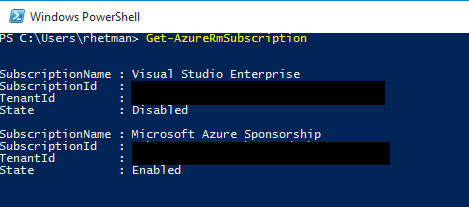
Get-AzureRmSubscription
You should see the list of your subscription. Copy your subscription id.


Set-AzureRmContext -SubscriptionId <your subscription id>
$passwd = ConvertTo-SecureString "<enter your Azure SQL Server password>" -AsPlainText -Force
$mysecret =New-Object System.Management.Automation.PSCredential("<Some password Identification e.g. MyPass",$passwd)
New-AzureRmDataLakeAnalyticsCatalogSecret -Account "< Data Lake account name>" -DatabaseName "<Data Lake DB Name>" -Secret $mysecret-Host "<your Azure SQL Server address" -Port 1433

When all executed successfully, open Visual Studio and create new Data Lake project.
Add the following code to usql script: Note: Make sure your script points to the correct Data Lake account and database.

CREATE CREDENTIAL IF NOT EXISTS AzureDWLogin WITHUSER_NAME = "<type your Azure SQL Server user", IDENTITY = "<type your password Identification you used in PS script e.g. MyPass";
CREATE DATA SOURCE IF NOT EXISTS AzureDW
FROM AZURESQLDW
WITH (
PROVIDER_STRING = "Initial Catalog=<enter you DW database name>;",
CREDENTIAL=AzureDWLogin,
REMOTABLE_TYPES = (bool, byte, sbyte, short, ushort, int, uint, long, ulong, decimal, float, double, string, DateTime)
);

Build and execute script
Add new script to project CreateExternalTable.usql
Add the following code:

CREATE EXTERNAL TABLE DW_IPData (
PartitionId int,
StartIPInt long,
StartIP string,
EndIPInt long,
EndIp string,
Country string,
State string,
City string,
   Location string
) FROM AzureDW LOCATION "dbo.IPData";

Build and Submit script.
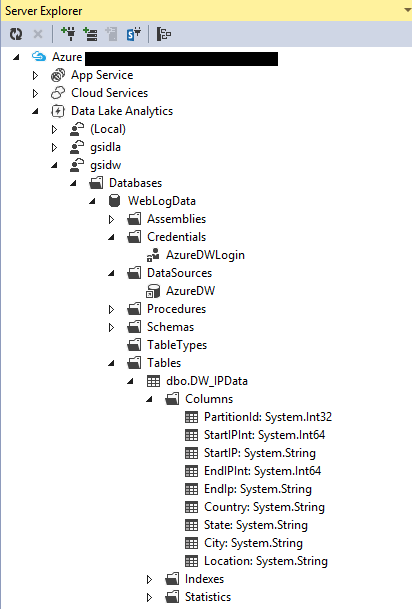
When done, you should see the external table available under Tables.


Now your table is ready to be used in U-SQL query. You can reference external tables same as local tables.
For example:

INSERT INTO WebLogData.dbo.LastMonthDataSQL
SELECT V.Year, V.Month, V.Day,
       I.Location,
       V.TotalVisits
FROM WebLogData.dbo.LastMonthVisist AS V
       LEFT JOIN WebLogData.dbo.DW_IPData AS I
       ON V.IPPartition == I.PartitionId
WHERE V.IPInt > 0 AND V.IPInt >= I.StartIPInt AND V.IPInt <= I.EndIPInt;

Thursday, August 11, 2016

Azure Data Lake Analytics - Image Processing

Azure Data Lake Analytics – Add Watermark to Image

In this post, I will show how to use custom Extractor, Processor, and Outputter.
As an example, I will process image file by adding watermark.

At this moment I’m assuming you have Azure Data Lake account ready and Visual Studio configured to access Azure account. If not, please read this post:
http://remekh.blogspot.com/2016/08/azure-data-lake-analytics-process-web.html

Let’s start by creating new folder “images” under your Data Lake Store account and upload some jpg files to that folder.
Next, open Visual Studio and create new Azure Data Lake project.
Change name of usql script to ImageProcess.usql
Double click on ImageProcess.usql.cs
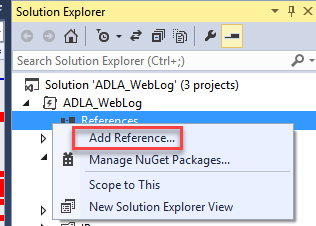
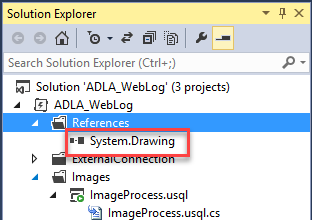
In your project add reference to System.Drawing.
To do this, follow these steps:

Right click on References and select “Add Reference”


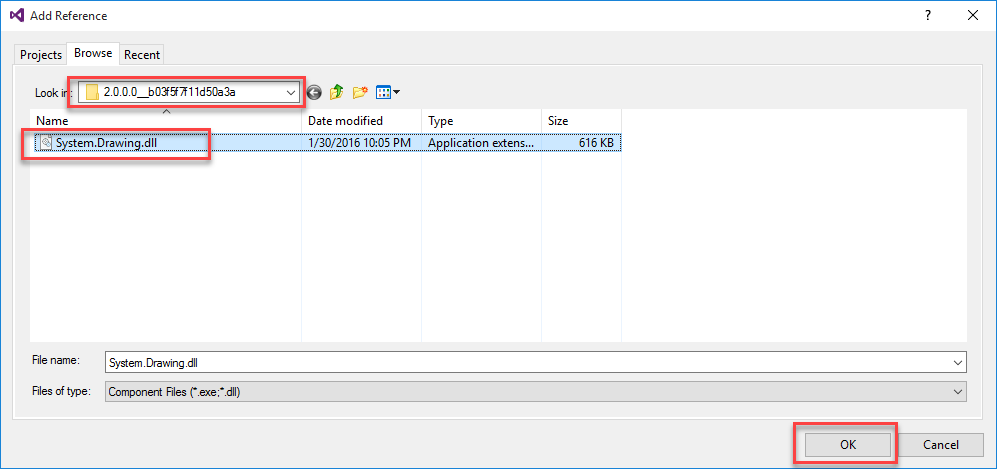
Switch to Browse tab and navigate to C:\Windows\assembly\GAC_MSIL\System.Drawing\2.0.0.0_b03f5f7f11d50a3a (or whatever version you have)
Select System.Drawing.dll and click "OK"


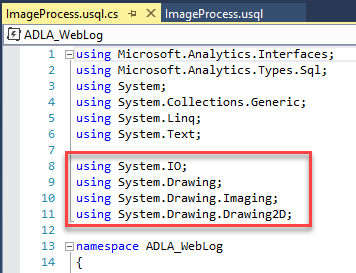
Add the following namespaces:
using System.IO;
using System.Drawing;
using System.Drawing.Imaging;
using System.Drawing.Drawing2D;


Extractor

When extractor reads binary file, it will read it as Stream but since U-SQL is not supporting Stream as the column type, we have to convert it to array of bytes (byte[])
To do this, add the following class to .cs file:
   class ImageUtil
   {
       public static byte[] ConvertStreamToArray(Stream input)
       {
           try
           {
               var image = Image.FromStream(input);
               MemoryStream ms = new MemoryStream();
               image.Save(ms, System.Drawing.Imaging.ImageFormat.Jpeg);
               return ms.ToArray();
           }
           catch (Exception)
           {
               return null;
           }
       }
   }
This is our image utility class.
Next, add custom Extractor class:
   [SqlUserDefinedExtractor(AtomicFileProcessing = true)]
   public class ImageExtractor : IExtractor
   {
       public override IEnumerable<IRow> Extract(IUnstructuredReaderinput, IUpdatableRow output)
       {
           byte[] imageArray = ImageUtil.ConvertStreamToArray(input.BaseStream);
           output.Set<byte[]>(0, imageArray);
           yield return output.AsReadOnly();
       }
   }
Our custom extractor will take the input stream and convert it to byte[]

Processor

Next we will add custom Processor. This class will be responsible for adding watermark to our image.
First, we need some class that is going to convert bytes’ array back to Stream.
Let’s add new class to our file:
   class ArrayToStream : IDisposable
   {
       private MemoryStream ms;
       public Image img;
       public ArrayToStream(byte[] inBytes)
       {
           ms = new MemoryStream(inBytes);
           img = null;
           try
           {
               img = Image.FromStream(ms);
           }
           finally
           {
               if (img == null)
               {
                   ms.Dispose();
               }
           }
       }
       public void Dispose()
       {
           try
           {
               img.Dispose();
           }
           finally
           {
               ms.Dispose();
           }
       }
   }
Next let’s add our custom Processor class:
   [SqlUserDefinedProcessor]
   public class ImageProcess : IProcessor
   {
       public override IRow Process(IRow input, IUpdatableRow output)
       {
           Stream img_output = new MemoryStream();
           byte[] image = input.Get<byte[]>(0);
           using (var si = new ArrayToStream(image))
           {
               Image img = si.img;
               Font font = new Font("Arial", 20, FontStyle.Bold, GraphicsUnit.Pixel);
               Color color = Color.FromArgb(100, 255, 0, 0);
               Point pt = new Point(10, 5);
               SolidBrush brush = new SolidBrush(color);
             Graphics graphics = Graphics.FromImage(img);
               graphics.DrawString("Your Watermark Text", font, brush, pt);
               graphics.Dispose();
               img.Save(img_output, ImageFormat.Jpeg);
               byte[] newImg = ImageUtil.ConvertStreamToArray(img_output);
               output.Set<byte[]>("image", newImg);
               return output.AsReadOnly();
           }
       }
   }
Change “Your Watermark Text” to any text you want to show on the image.

Outputter

Lastly, let’s add custom Outputter class that will be responsible for converting our data from byte[] to image format.

   [SqlUserDefinedExtractor(AtomicFileProcessing = true)]
   public class ImageOutputter : IOutputter
   {
       public override void Output(IRow input, IUnstructuredWriter output)
       {
           var obj = input.Get<object>(0);
           byte[] imageArray = (byte[])obj;
           using (MemoryStream ms = new MemoryStream(imageArray))
           {
               var image = Image.FromStream(ms);
               image.Save(output.BaseStream, ImageFormat.Jpeg);
           }
       }
   }

U-SQL Script 

Now, once we have all of our classes in place, let’s add U-SQL statements to process image.
Double click on ImageProcess.usql Make sure that your script is set to correct Data Lake account.

Add the following code: @Images = EXTRACT image byte[] FROM @"/images/someImageFile.jpg" USING new ADLA_WebLog.ImageExtractor(); @ProcessImage = PROCESS @Images PRODUCE image byte[] USING new ADLA_WebLog.ImageProcess(); OUTPUT @ProcessImage TO @"/images/someNewImageFile.jpg" USING new ADLA_WebLog.ImageOutputter();
Change the name of input and output files.
Build and Submit your script.
When the job is finished, go to your Data Lake Storage and double click on “images” folder.
You should see the new file. Right click on the file and select "Download".
When done, open it – you should see your watermark on the image.

Wednesday, August 10, 2016

Azure Data Lake Analytics - Process Web Logs

Azure Data Lake Analytics - Process Web Logs Using U-SQL COMBINE


In this post I explain how to use Azure Data Lake Analytics to process IIS logs.
I will show you how to group visits per day and location and present results on the map in Power BI.

Requirements:

Azure subscription
Visual Studio 2013 or later
Azure Tools for Visual Studio - https://azure.microsoft.com/en-us/tools/
Azure Data Lake Tools for Visual Studio - https://www.microsoft.com/en-us/download/details.aspx?id=49504
Power BI account – optional
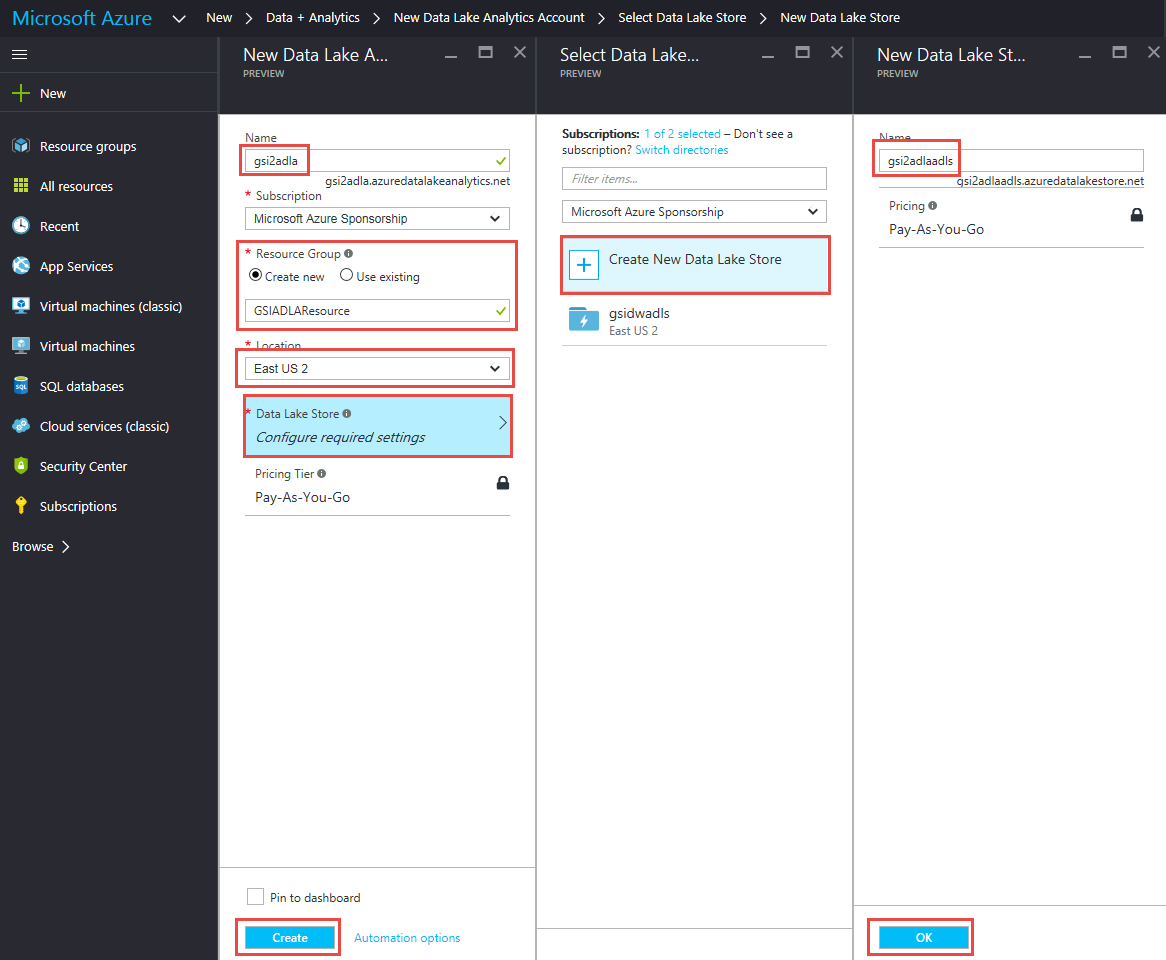
Create Azure Data Lake Analytics and Data Lake Store

If you already setup Azure Data Lake Analytics you can skip this step
To setup Data Lake, follow these steps:

  • Connect to https://portal.azure.com
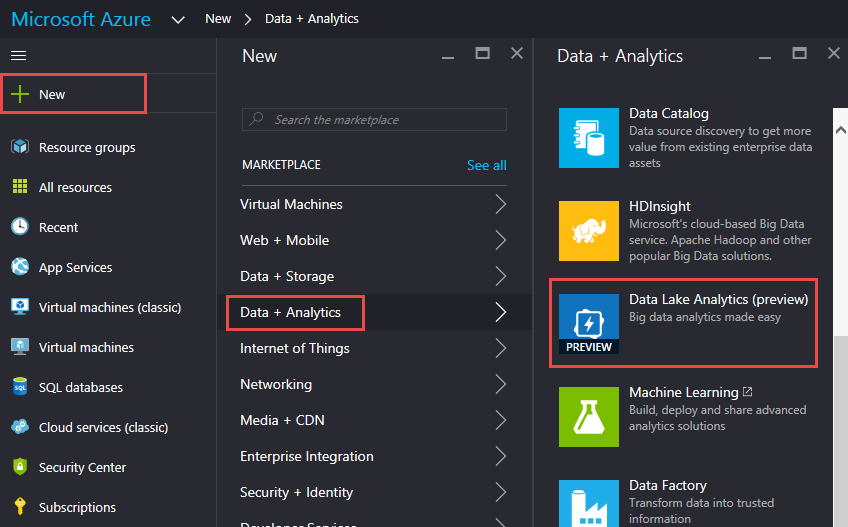
  • Click New => Data + Analytics => Data Lake Analytics

  • Enter name and Resource group
  • Select Location 
  • Click Data Lake Store
  • Click Create New Data Lake Store
  • Enter Name and Click OK
  • Click Create


Wait until Data Lake Analytics becomes available.

Create Job to Process IIS Log Files

Setup Visual Studio

  • Install Azure Tools for Visual Studio
  • Install Azure Data Lake Tools for Visual Studio
  • Open Visual Studio
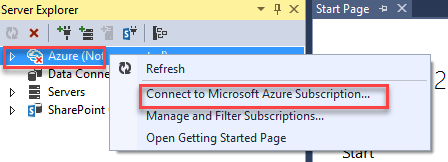
  • Open Server Explorer
  • Under Server Explorer right click and select “Connect to Microsoft Azure Subscription”

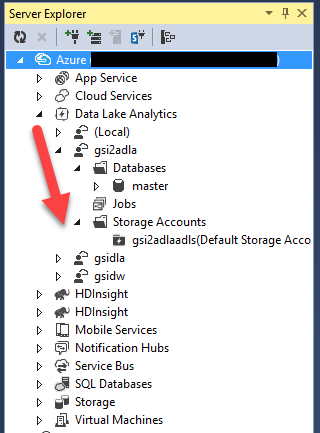
  • After authentication expend Azure -> Data Lake Analytics -> [Name of the Data Lake you create in previous step]

Upload Logs to Data Lake Store

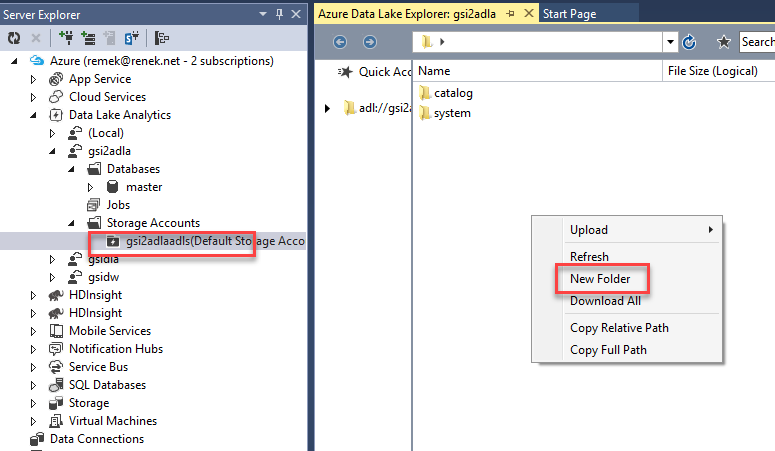
  • Expend Storage Accounts
  • Double click on Default Storage Account
  • You should see the list containers (folders)
  • Right click and select New Folder

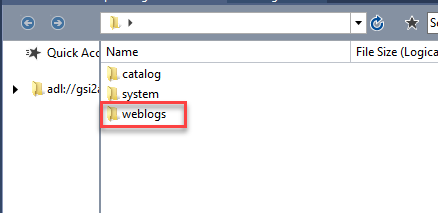
  • Set name e.g. weblogs

  • Double click on the new folder
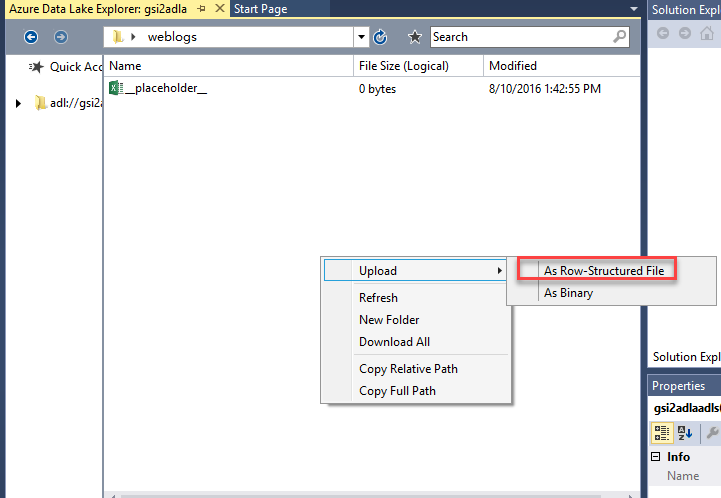
  • Right click and select Upload -> As Row-Structured File

  • Select IIS log files

There are some limitations as to how many files can be uploaded simultaneously. Because of this, you might repeat the last step few times until all log files are uploaded.

Upload IP Reference Data

  • Under Storage Account create new folder ( e.g. ipdb)
  • Download reference file from https://db-ip.com/db/download/city
  • Extract csv file and upload to the new folder

Create Database and Tables

Create Database

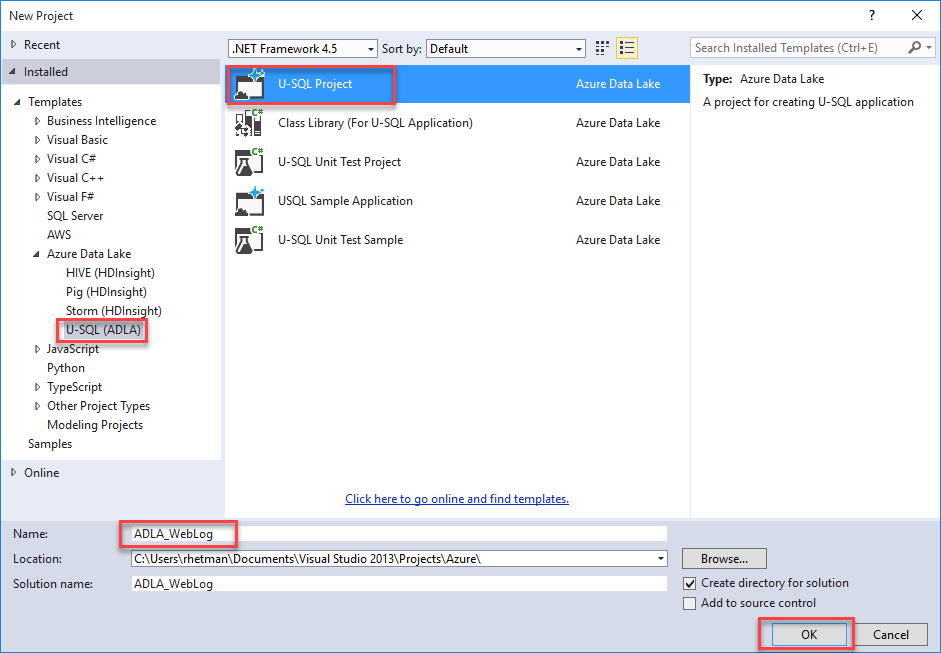
From the Visual Studio File menu select New -> Project
From Templates select Azure Data Lake -> U-SQL (ADLA)
Select U-SQL Project
Enter project name, location and click OK.


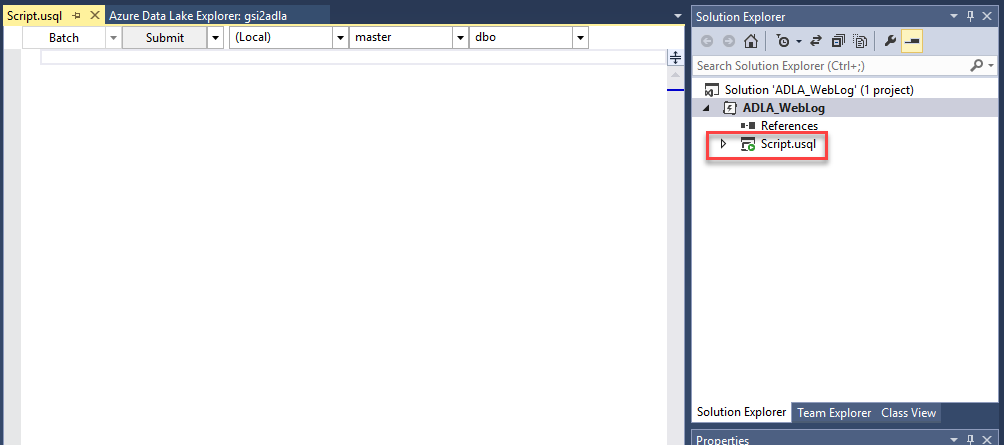
You should see new project with file Script.usql (you can rename this file e.g. CreateDatabse.usql)


Open that file
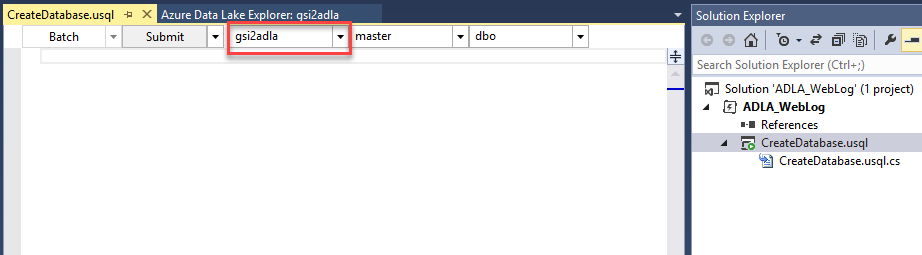
On the top you will see configuration options
Change (local) to your Data Lake account


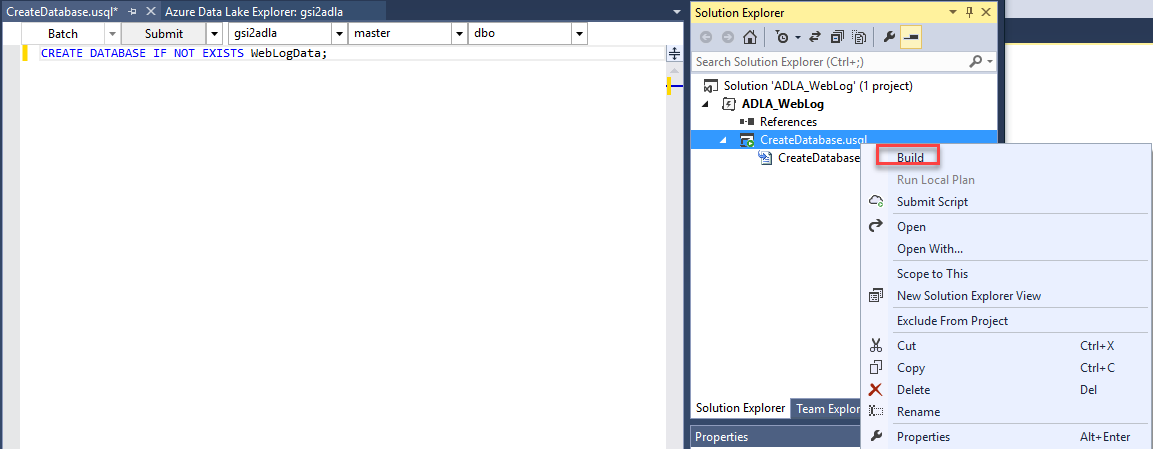
Type the following code:

CREATE DATABASE IF NOT EXISTS WebLogData;

Right click on the script and select Build


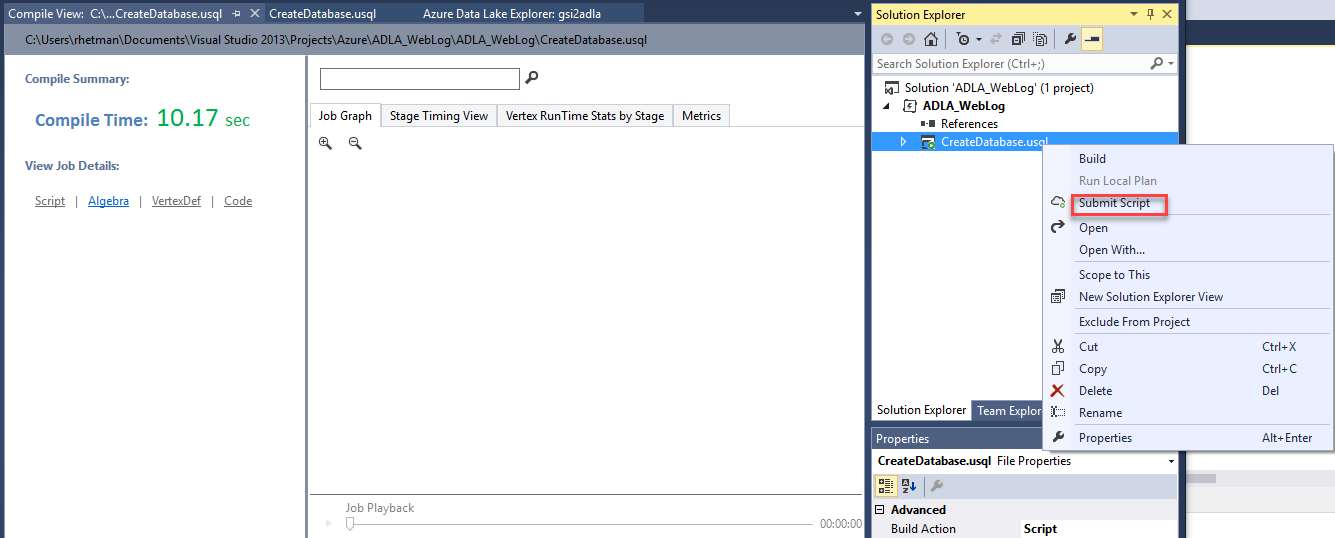
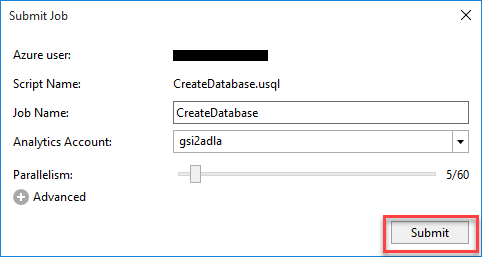
When done right click again and select Submit Script


Wait until finished
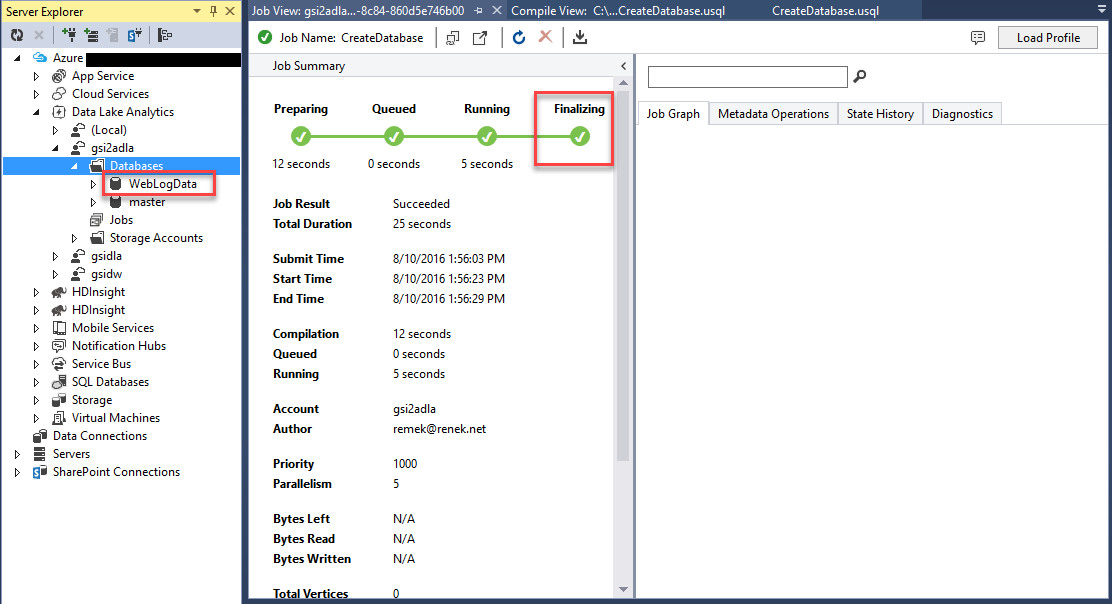
Refresh Databases - you should see new one WebLogData;


Create Table to Store Log Data

Add new usql script to project. You can do it by right click on the project and selecting Add -> New Item
Change name to LogExtractorFunction.usql
In the script option change (local) to your Data Lake Account and database from master to WebLogData (or the   name of database that you created in previous step).

Type the following code:

DROP FUNCTION IF EXISTS WebLogData.dbo.GetLogFiles;

CREATE FUNCTION WebLogData.dbo.GetLogFiles ()
RETURNS @result TABLE
(
    s_date DateTime,
    s_time string,
    s_sitename string,
    cs_method string,
    cs_uristem string,
    cs_uriquery string,
    s_port int,
    cs_username string,
    c_ip string,
    cs_useragent string,
    cs_referer string,
    sc_status int,
    sc_substatus int,
    sc_win32status int,
    s_timetaken int
)
AS
BEGIN
    @result = EXTRACT
        s_date DateTime,
        s_time string,
        s_sitename string,
        cs_method string,
        cs_uristem string,
        cs_uriquery string,
        s_port int,
        cs_username string,
        c_ip string,
        cs_useragent string,
        cs_referer string,
        sc_status int,
        sc_substatus int,
        sc_win32status int,
        s_timetaken int
    FROM @"/weblog/{*}.log"
    USING Extractors.Text(delimiter:' ',silent:true);
    RETURN;
END;

This code will create table-valued function that will extract and return all records from all log files.
/weblog/ is the name of the folder where log files were uploaded

Build and submit script

Add new script UploadLogData.usql
Change option to correct account and database

Type the following code:

DROP TABLE IF EXISTS WebLogData.dbo.WebLogs;

CREATE TABLE WebLogData.dbo.WebLogs (
            Year        int,
            Month       int,
            Day         int,
            IPInt    long,
            IPPartition int,
            TotalVisits         long?,
            INDEX lmv_idx CLUSTERED (IPInt ASC)
                  DISTRIBUTED BY RANGE (IPInt) INTO 255
);

@weblog = WebLogData.dbo.GetLogFiles ();

INSERT INTO WebLogData.dbo.WebLogs
SELECT s_date.Year AS Year,
       s_date.Month AS Month,
       s_date.Day AS Day,
       ADLA_WebLog.Convertor.GetIP(c_ip) AS IPInt,
       ADLA_WebLog.Convertor.GetPartitionID(c_ip) AS IPPartition,
       COUNT(DISTINCT c_ip) AS cnt
FROM @weblog
GROUP BY s_date,
         c_ip;

The first statement will create new table to store log data.
The next one will execute GetLogFiles function and store results in rowset expression variable
The last one will take all records from @weblog variable, group it by date and user IP address, and insert result into WebLogs table.

If you took a peek at the data format from IP reference file, you have probably noticed that each location has assigned range of IPs (from – to). Because of this and because IPs from log files as well as IPs from reference file are in string format, we have to come up with some kind of conversion of IPs.

In this example I’m going to convert each IP to number so the minimum IP will be 0 and maximum will be 255255255255

To implement conversion method, expend your usql script and double click on .cs file

Below namespace enter following code:

    public static class Convertor     {         public static long GetIP(string ip)         {             try             {                 var p = ip.Replace("\"", "").Split('.');                 return long.Parse(p[0]+"000000000")  + long.Parse(p[1]+"000000") + long.Parse(p[2]+"000")  + long.Parse(p[3]);             }             catch             {                 return 0;             }         }         public static int GetPartitionID(string ip)         {             try             {                 var p = ip.Replace("\"", "").Split('.');                 return int.Parse(p[0]);             }             catch             {                 return 0;             }         }     } In U-SQL you can reference methods using the following schema: [namespace].[class name].[method name](parameters)
Here is how we reference those methods in our script:

         ADLA_WebLog.Convertor.GetIP(c_ip) AS IPInt,
      ADLA_WebLog.Convertor.GetPartitionID(c_ip) AS IPPartition,

Build, and if no error occurs, Submit Script and Wait until job is finished. When done, you should see the new table in database.

Create Table to Store IP Reference Data

In this step, we will create table to store IP reference location data.
Add new script IPReferenceFunction.usql to project
Type the following code:

DROP FUNCTION IF EXISTS WebLogData.dbo.ProcessIPs;

CREATE FUNCTION WebLogData.dbo.ProcessIPs()
RETURNS @result TABLE
(
    ip_start string,
    ip_end string,
    country string,
    state string,
    city string
)
AS
BEGIN
    @result = EXTRACT
    ip_start string,
    ip_end string,
    country string,
    state string,
    city string
    FROM @"/ipdb/dbip-city.csv"
    USING Extractors.Csv(silent:true);
    RETURN;
END;

Build and Submit Script
Add new script UploadIP.usql  and add the following code:

DROP TABLE IF EXISTS WebLogData.dbo.IPs;

CREATE TABLE WebLogData.dbo.IPs (
            ip_start    string,
            ip_end      string,
            country     string,
            state       string,
            city        string,
            ip_start_int long,
            ip_end_int long,
            partitionid int,
    INDEX idx_ip
    CLUSTERED(ip_start_int ASC, ip_end_int ASC)
                  DISTRIBUTED BY RANGE (partitionid) INTO 255
);

@ipdata = WebLogData.dbo.ProcessIPs();

INSERT INTO WebLogData.dbo.IPs SELECT ip_start,
       ip_end,
       country,
       state,
       city,
       ADLA_WebLog.Convertor.GetIP(ip_start) AS ip_start_int,
       ADLA_WebLog.Convertor.GetIP(ip_end) AS ip_end_int,
       ADLA_WebLog.Convertor.GetPartitionID(ip_start) AS partitionid
FROM @ipdata WHERE ip_start NOT LIKE "%:%";

Open .cs file and add the following code. It is the same class and method we used before to convert IPs.
    public static class Convertor     {         public static long GetIP(string ip)         {             try             {                 var p = ip.Replace("\"", "").Split('.');                 return long.Parse(p[0] + "000000000") + long.Parse(p[1] + "000000") + long.Parse(p[2] + "000") + long.Parse(p[3]);             }             catch             {                 return 0;             }         }         public static int GetPartitionID(string ip)         {             try             {                 var p = ip.Replace("\"", "").Split('.');                 return int.Parse(p[0]);             }             catch             {                 return 0;             }         }     } Build and Submit Script
Wait until job is finished. When done, you should see the second table in database.

Create Table for Summary Data

Now, we need a table where we are going to store result of our computations.
To create a new table, add new script “VisitsSummaryTabel.usql” to project and type the following code:

DROP TABLE IF EXISTS WebLogData.dbo.VisitSummary;

CREATE TABLE WebLogData.dbo.VisitSummary (
    Year int,
    Month int,
    Day int,
    Location     string,
    TotalVisits long?,
    INDEX idx_lmdDW
    CLUSTERED(Year ASC)
    DISTRIBUTED BY RANGE (Year) INTO 50
  );

Process Data

In this paragraph I will show how to merge log data with IP reference data and store it in the VisitSummary table.
There are few methods to achieve this goal. I would recommend the last one since it has the best performance.

Merge Data Using CROSS JOIN

In this example, I will use CROSS APPLY to reference user IP to Location.
Let's add new script CrossApplyMethod.usql to our project and type the following code:

  @data =            SELECT Year, Month, Day, IPInt, TotalVisits            FROM WebLogData.dbo.WebLogs            WHERE IPInt > 0; INSERT INTO WebLogData.dbo.VisitSummary SELECT D.Year,        D.Month,        D.Day, (String.IsNullOrEmpty(I.state) ? I.city+", "+I.country : I.city+", "+I.state+", "+I.country) AS Locaton,           D.TotalVisits FROM @data  AS D      CROSS JOIN          WebLogData.dbo.IPs AS I WHERE r.IPInt BETWEEN I.ip_start_int AND I.ip_end_int; Since not all locations have State value, we need to apply some logic to return correct value.
Unlike in T-SQL where you would use CASE statement to write this logic, in U-SQL we are using C#
If you wonder why CROSS JOIN instead of LEFT JOIN, here is the answer:
From MSDN “U-SQL, like most scaled out Big Data Query languages that support joins, restricts the join comparison to equality comparisons between columns in the rowsets to be joined. If the column references are not unique across all the rowsets in the query, they have to be fully qualified with the rowset variable name, rowset name or specified alias.”

To read more about U-SQL JOIN visit: https://msdn.microsoft.com/en-us/library/azure/mt621310.aspx

Using this method, it took 25 minutes to process my files.

Merge Data Using Partition

As you recall both tables (WebLogs and IPs) we added column to store partition Id.
We used ADLA_WebLog.Convertor.GetPartitionID(IP) method to get partition Id.
The partition is integer that represent first part of the IP address:
                “A.B.C.D” => Partition Id = Integer(A)

Let's create new script PartitionMethod.usql and type the following code:

INSERT INTO WebLogData.dbo.VisitSummary SELECT V.Year, V.Month, V.Day, (String.IsNullOrEmpty(I.state) ? I.city+", "+I.country : I.city+", "+I.state+", "+I.country) AS Locaton,        V.TotalVisits FROM WebLogData.dbo.WebLogs AS V LEFT JOIN WebLogData.dbo.IPs AS I ON V.IPPartition == I.partitionid WHERE V.IPInt > 0 AND V.IPInt >= I.ip_start_int AND V.IPInt <= I.ip_end_int; In this case, we can use LEFT JOIN because both tables can be joined by partition Id.
Because in the IPs (our reference table) multiple records can have the same partition, we have to use WHERE clause to find correct location.

Using this method, it took 8.5 minutes to process the same data comparing to previous method.

Merge Data Using COMBINE

In this method we are going to use COMBINE U-SQL expression.
Let’s start by adding new script CombineMethod.usql  and typing the following code:

@data =
           SELECT Year, Month, Day, IPInt, TotalVisits, IPPartition
           FROM WebLogData.dbo.WebLogs
           WHERE IPInt > 0;

@ip = SELECT ip_start_int, ip_end_int, country, state, city, partitionid FROM WebLogData.dbo.IPs;

@c =
    COMBINE @data WITH @ip
    ON IPPartition == partitionid
    PRODUCE Year int,
            Month int,
            Day int,
            Location string,
            TotalVisits long?
    USING new ADLA_WebLog.MergeData();

INSERT INTO WebLogData.dbo.VisitSummary
SELECT Year,
       Month,
       Day,
       Location,
       TotalVisits
FROM @c;

Open .cs file and add following code:

    [SqlUserDefinedCombiner]     public class MergeData : ICombiner     {         public override IEnumerable<IRow> Combine(IRowset left, IRowset right, IUpdatableRow output)         {             var ipList = (from ip in right.Rows                           select new                           {                               IPStart = ip.Get<long>("ip_start_int"),                               IPEnd = ip.Get<long>("ip_end_int"),                               country = ip.Get<string>("country"),                               state = ip.Get<string>("state"),                               city = ip.Get<string>("city")                           }).ToList();             foreach(var row in left.Rows)             {                 output.Set<int>("Year", row.Get<int>("Year"));                 output.Set<int>("Month", row.Get<int>("Month"));                 output.Set<int>("Day", row.Get<int>("Day"));                 output.Set<long?>("TotalVisits", row.Get<long?>("TotalVisits"));                 long IP = row.Get<long>("IPInt");                 string Location = "";                 if (ipList != null)                 {                     var loc = (from w in ipList                                where IP >= w.IPStart && IP <= w.IPEnd                                select new                                {                                    country = w.country,                                    state = w.state,                                    city = w.city                                }).ToList();                   if ((loc != null) && (loc.Count > 0))                     {                         if (String.IsNullOrEmpty(loc[0].state))                         {                             Location = String.Format("{0}, {1}", loc[0].city, loc[0].country);                         }                         else                         {                             Location = String.Format("{0}, {1}, {2}", loc[0].city, loc[0].state, loc[0].country);                         }                     }                 };                 output.Set<string>("Location", Location);                 yield return output.AsReadOnly();             }         }     } Build and Submit Script
How this works:
First, log data records and IP reference records assigned to variable rowsets.
Next, in the COMBINE statement, take both rowsets, join them using partition id and pass to custom combiner.
Because the UDO’s IRowset is implemented as a forward-only streaming API, that does not support accessing a row again after accessing the next row, the first step in custom combiner is to convert IP Reference rowset to the list.
Next it will iterate through all log records. For each record it will take user IP and try to find location in reference data.
Finally, it will output data to new schema that was defined in the COMBINE statement.

This method took only 5 minutes to process the same amount of data.

Present Result in Power BI
Output data

At the time of writing this article, Power BI provides connection only to Data Lake Store (not database directly).
To output data from table to store, follow these steps:
Under Storage Account, create new folder “outputs”
Add new script (OutputData.usql) to project and add the following code:

@rs1 =
    SELECT *
    FROM WebLogData.dbo.VisitSummary;

OUTPUT @rs1  
    TO "/outputs/log_data.csv"
    USING Outputters.Csv();

Build and Submit Script
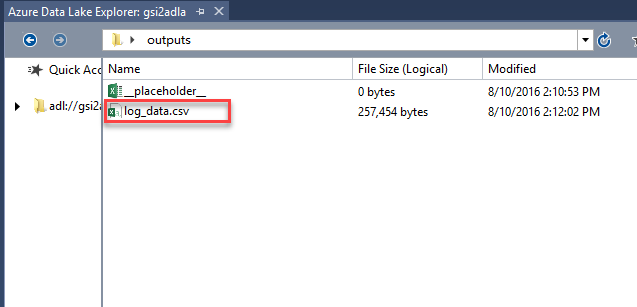
When done, you should see log_data.csv file in outputs folder.


Power BI
Open Power BI Desktop. You can download it from: https://powerbi.microsoft.com/en-us/desktop/
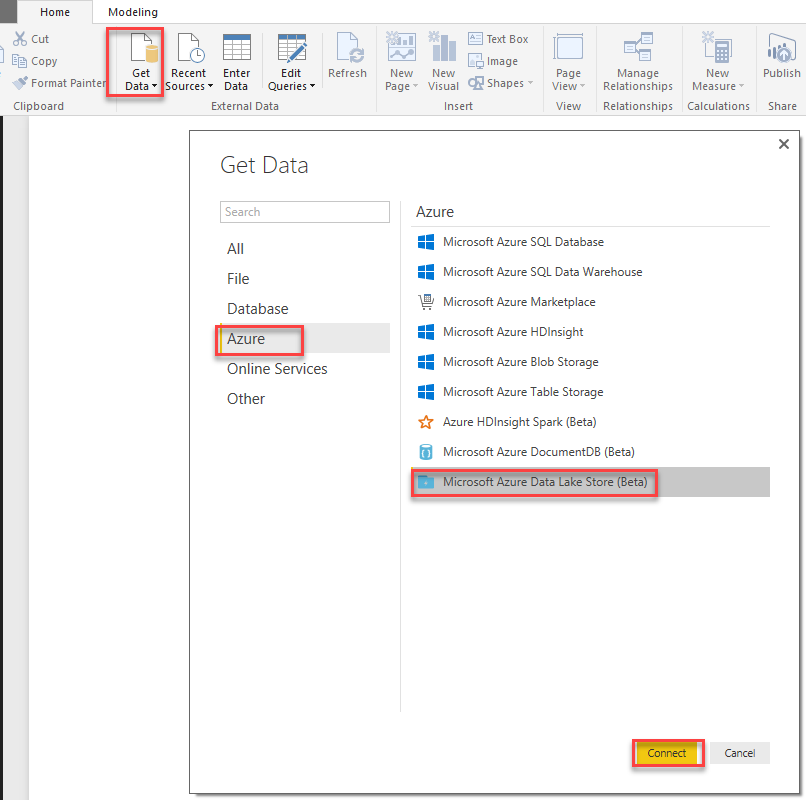
Click, "Get Data"
From the list on the left side, select Azure and from the right select Microsoft Azure Data Lake Store
Click "Connect"


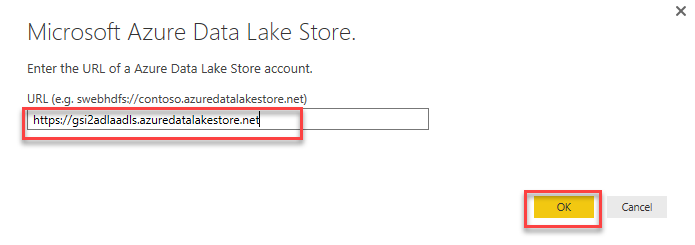
Enter URL to Data Lake Store – you can get it from Azure portal – it will look like this: https://xxxxx.azuredatalakestore.net where xxxxx is your Data Lake Store account name.
Click "OK"


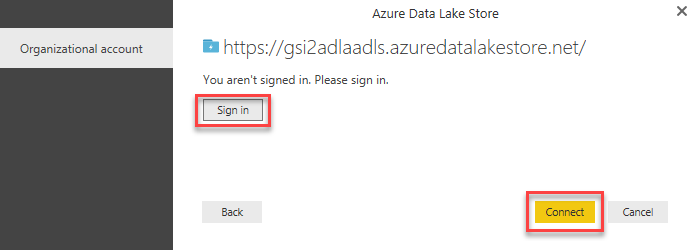
If you are not signed in to Azure, click Sign In and then click Connect.


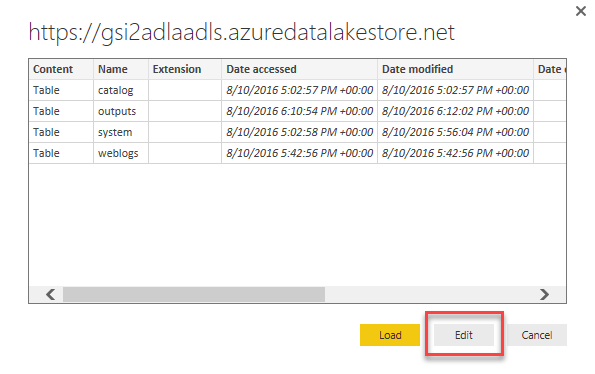
You should see the table with list of folders created under your Data Lake Store account.
Click "Edit"


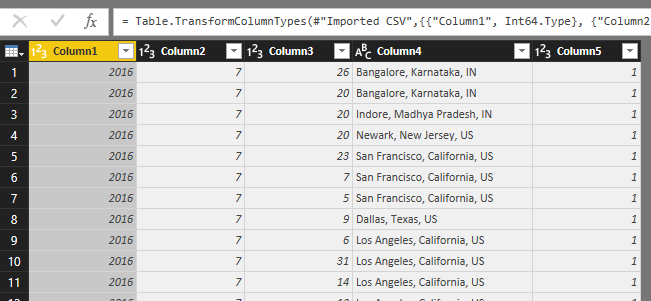
Click the first column (Table) in the row with outputs folder


Click the first column (Binary) in the row with your data file. If you follow these examples, it should be log_data.csv


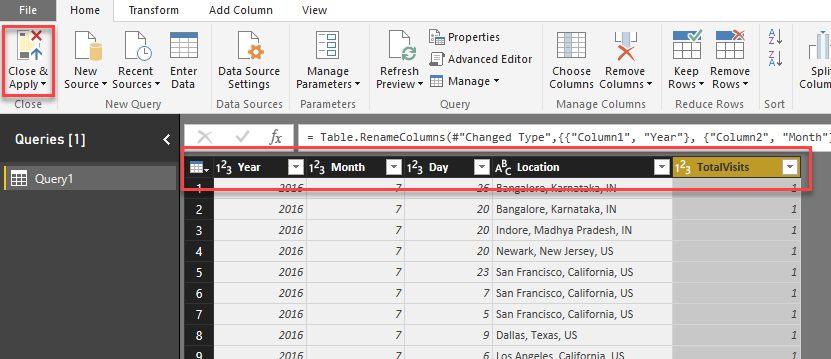
Rename columns as follow:
Column1 -> Year
Column2 -> Month
Column3 -> Day
Column4 ->Location
Column5 ->TotalVisits

Click Close & Apply


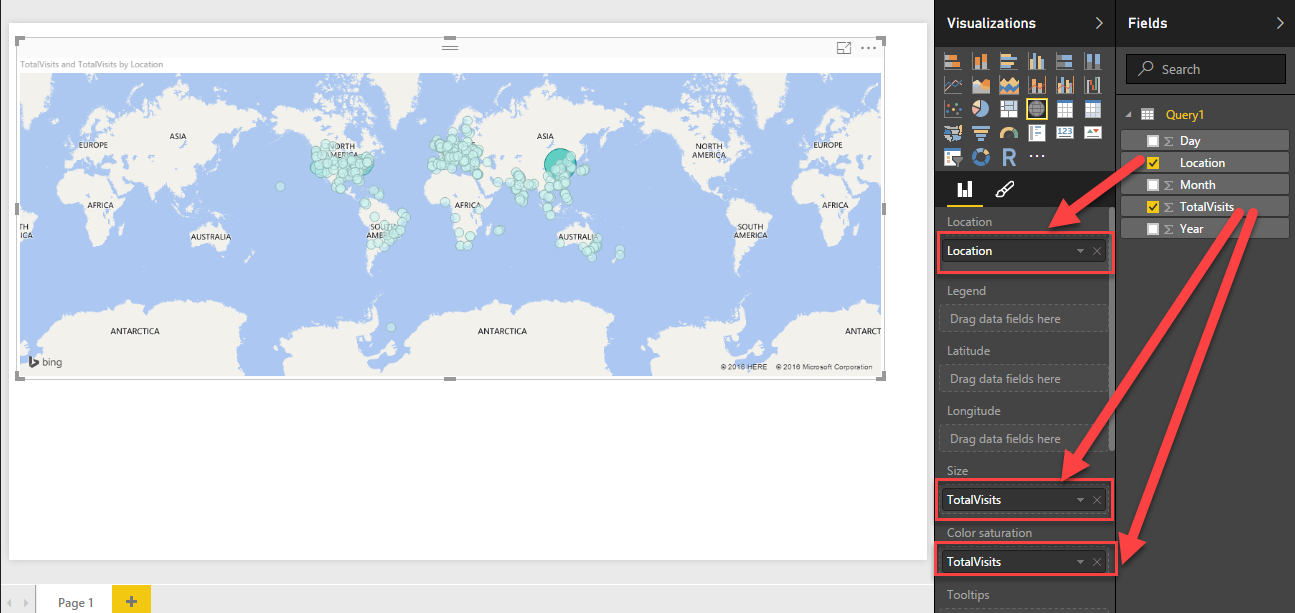
From the Visualization on the left side, click Map to add it to report.


In the Map properties make the following changes:
From the query drag Location column and drop on Location Map property,
Drag TotalVisits and drop on Size
Drag TotalVisits once again and drop it on Color saturation


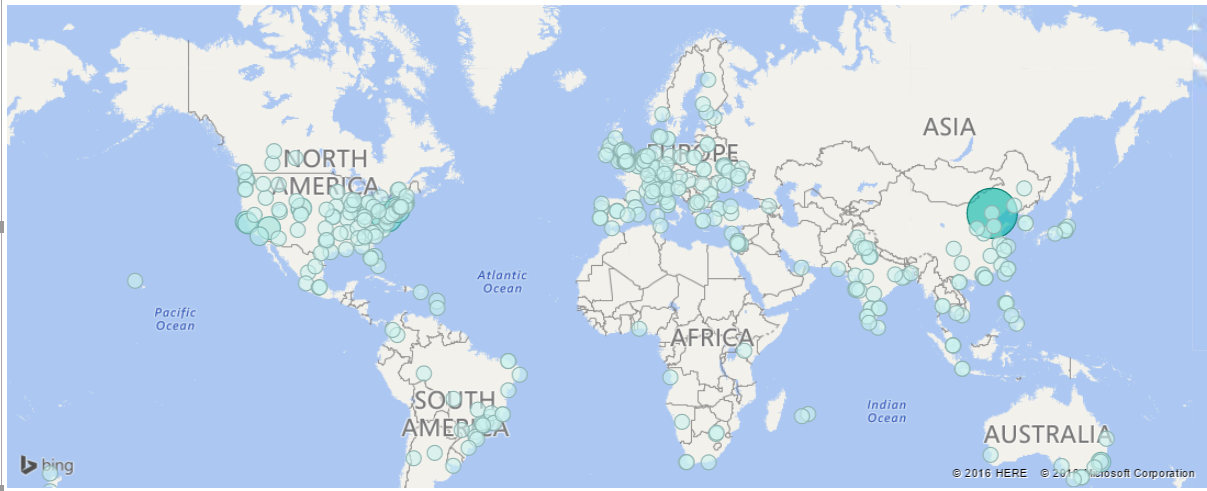
Done. Your report "Visit by Country" is ready to publish to Power BI